No matching topics. Try “preview”, “duplicates” or “backup”.
Import and resume
- Choose your library, then add source folders to Import Queue. Drag several folders onto the queue to add separate jobs.
- Start queue. Select a job for progress, new files, confirmed matches and issues.
- Pause waits for the current file/network operation. Resume uses saved completion markers for unchanged completed files; reading the saved job list is not a new copy operation.
Import preferences control handling of originals. Missing-file jobs created by verification always leave originals in place and skip existing identical content. Unsupported non-media files remain unresolved and are listed separately.
Verify every file
- Choose Review → Verify all files, or Check folder against library.
- Select remembered sources, Add source folder, or Locate originals when their location changed. A disconnected source is not verified.
- Run Verify all files. The app re-reads source and active library content and compares SHA-256 and size independently of filenames. All file types in selected source folders are checked.
- Review Missing from library and Could not check. Preview missing files, then Import missing files to queue only supported missing media using your naming setup.
Check library only compares active library files with recorded import hashes. It does not recheck disconnected originals. Files without recorded hashes, missing catalog paths, inaccessible folders and linked folders remain explicit issues. _Catalog, _Trash, _RestoreSafety and _RestoredAppData are technical/recovery exclusions.
View details / export shows scope, counts, bytes, dates, issues and exclusions. Previous reports checks size/mtime changes; unchanged details are not a fresh content hash check. Always rerun before cleanup.
Compare sample visually offers a count or percentage and source/library previews. Sampling supplements verification; it cannot prove every file copied. Advanced preview-readability checks detect preview decoding failures, not complete video corruption.
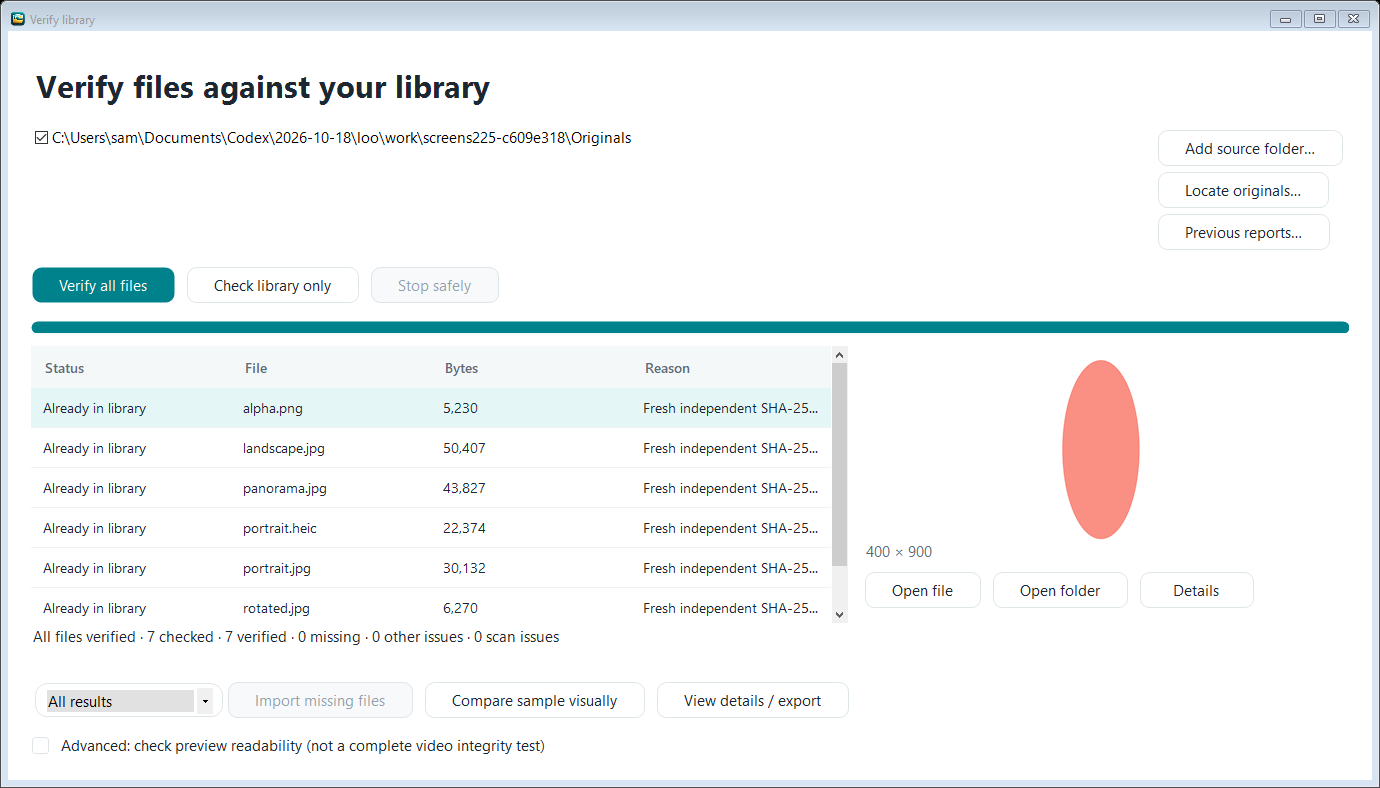
1. Selected sources define scope. 2. Results distinguish verified and unresolved files. 3. Details and visual sampling are secondary actions. Screenshot uses test files.
Duplicates and quarantine
Review → Library duplicates → Find exact duplicates scans active library content by size and SHA-256, including identical files with different names. Choose a group and the copy to keep, then Move extras to quarantine. Choose a separate folder, optionally on another drive.
Both keeper and candidates are checked again. A verified quarantine copy is created before an extra library copy is removed. Original source paths are protected. This action does not permanently erase the quarantine copy.
Quarantine recovery restores selected entries without overwriting occupied paths. Keep the quarantine folder and library catalog together with your backup plan. External quarantine content is not included in a full library backup; back up that destination separately.
Advanced: similar photos compares visual signatures. Suggestions may include different photos and miss other similarities. Video comparison uses one preview frame. No file is deleted from similarity results; inspect originals and play videos before deciding.
Review undated photos
Review missing information opens Photos and List views. Group by Location or Original folder. Locations use saved city/country or approximate GPS buckets where available; No location available remains separate.
- Select a photo, or use Ctrl/Shift for several.
- Select group selects the visible photos in that group on the current page. Page controls show the displayed range.
- Check Date, City, Country, Event or Library tags. Custom fields opens named values.
- Save changes shows proposed names/folders before applying corrections to library copies.
Date clues can suggest a valid date in a filename. It always requires confirmation. Filesystem modified dates are clues, not capture dates. Similar / related photos includes dated library photos when available, with dates and locations as context. Do not infer capture dates from appearance alone.
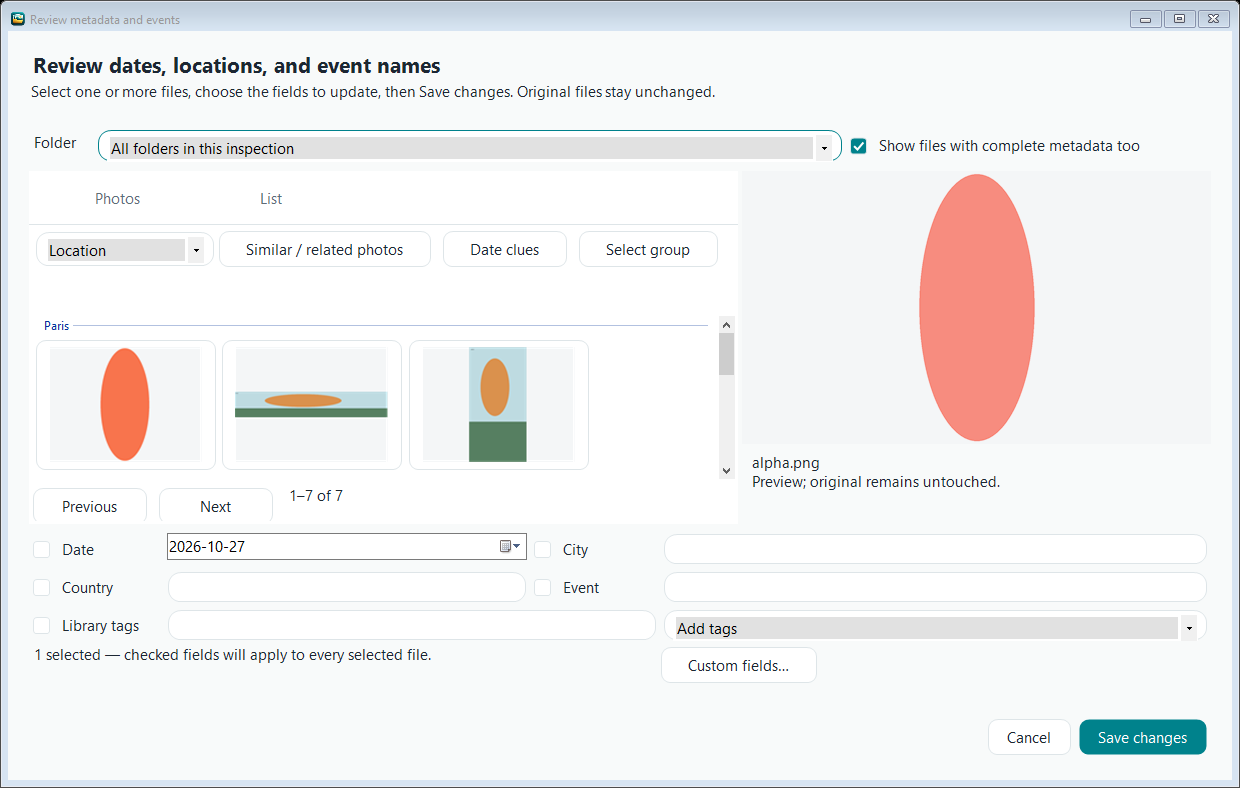
Location grouping, multi-select galleries and bulk edits. Test images shown.
Library and previews
Browse years and months in Library. Grid view hides filenames; switch to List view for names and sortable details. Search tags and custom field values, then use Edit selected for one or several files.
Double-click opens the larger viewer. Fit preserves the whole photo. 100% loads original decoded image detail for supported images; video previews remain thumbnails. Scroll to zoom, drag to pan, use arrow keys for previous/next, F11 for fullscreen and Esc to exit. Right-click provides viewing and file-location actions.
HEIC decoding is bundled. Original orientation and sRGB conversion are applied to preview copies, never to your originals. If a preview is unavailable, use Open file / video with your installed viewer/player.
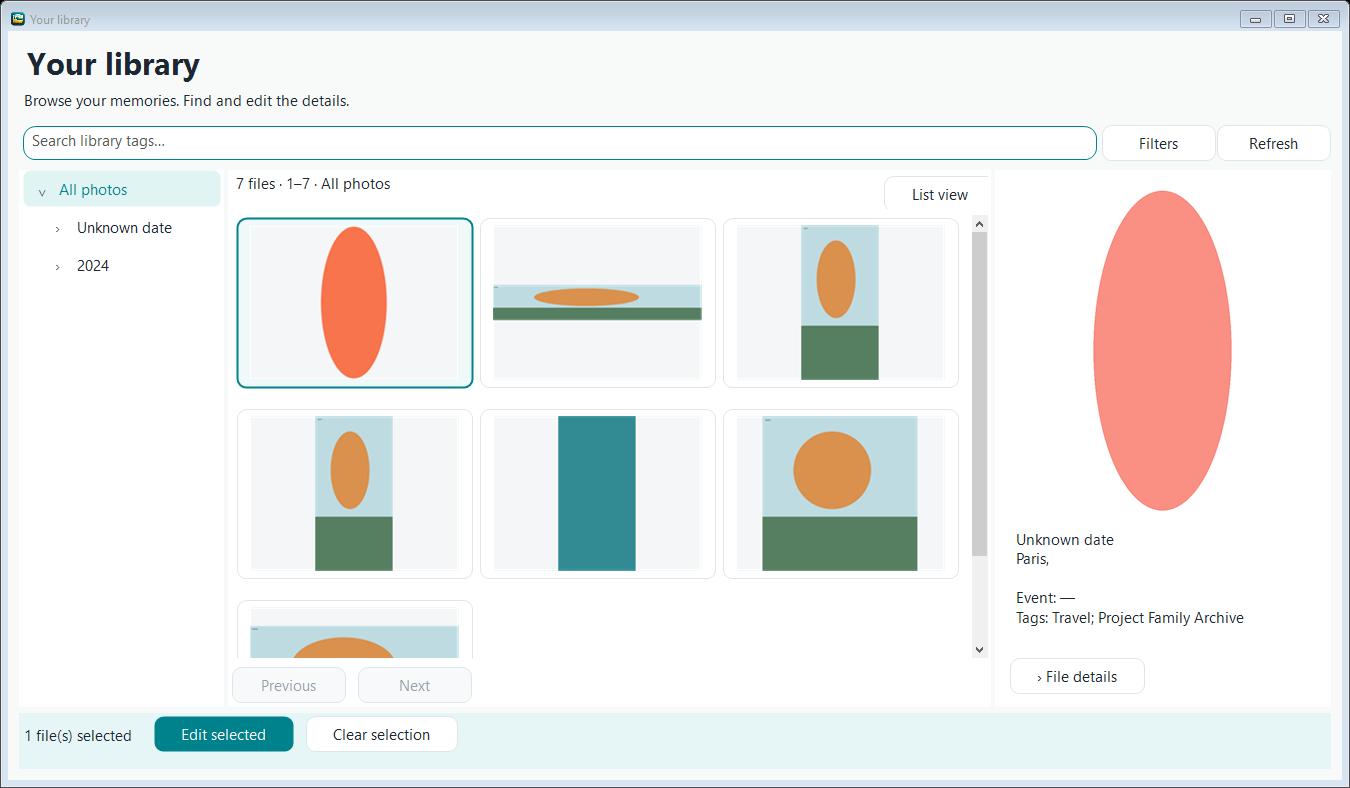
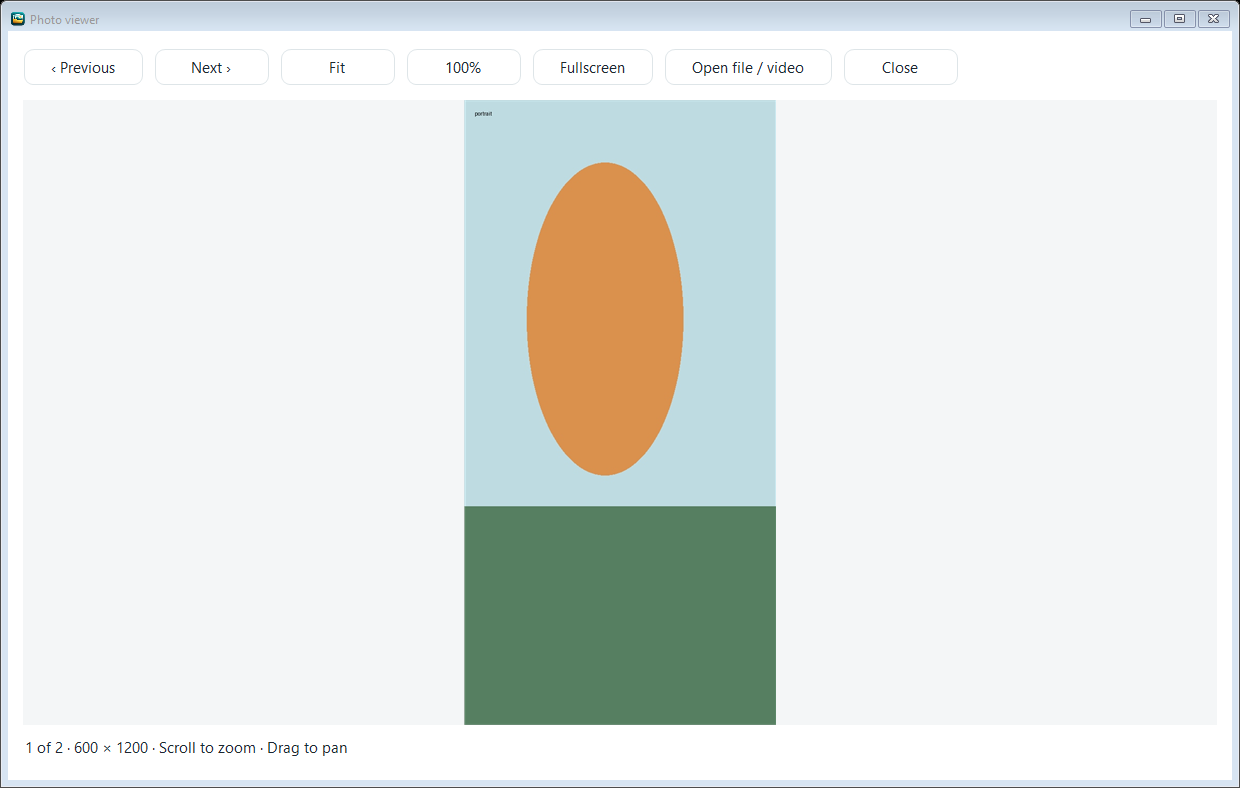
Synthetic test images demonstrate portrait/landscape proportions without using private photos.
Tags, custom fields and naming
Open the top-right Settings gear. Ordinary tags are searchable labels such as Family or Travel. Custom fields are named values, such as Project = Family Archive. Event is already built in.
- Tags & custom fields defines tokens, display labels and suggested values.
- In Library review, select photos, open Custom fields, check the field and stage a value. Save changes previews the resulting organization before committing.
- Folder & Naming Setup offers a field picker and live example. Add Event or Project to file/folder patterns; advanced pattern text is optional.
Empty values and adjacent separators are omitted. Invalid path characters are sanitized and uniqueness safeguards remain. Existing field tokens cannot be silently renamed/deleted; archive them to hide them from new edits while retaining saved values and valid templates. Create a new field and migrate values explicitly through bulk edit.
Tags and custom fields live in Photo Library, not embedded EXIF/Windows Tags. Data-only and full backups include them. Corrections leave original source files untouched.
Logs and job issues
Logs shows timestamped activity and file records with job filters. Select a file entry for preview; general activity may have no file. Job summary & issues shows import failures separately from original-handling failures.
Completed processing does not mean every copy succeeded. Read the issue reasons and verify source coverage. Retry unresolved imports uses valid saved completion markers rather than transferring all completed files again.
Backup, OneDrive and restore
Choose Drive or NAS, or OneDrive synced folder. OneDrive uses the locally synced folder; local free space is required. If automatic folder discovery fails, choose the correct OneDrive folder manually.
The app confirms local backup integrity, not OneDrive cloud upload. Check OneDrive sync before relying on an online copy. Direct cloud upload/sign-in is not part of this release.
Library data only saves catalog, tags, custom fields, corrections, settings and history. Full library also saves all files within the library, including recovery areas. External originals/quarantine folders are outside that scope.
The destination is a versioned content store. Keep its objects and versions intact and use Restore selected backup. Restore rechecks content and previews conflicts. Existing different files are kept unless replacement is explicitly chosen; replaced copies go to _RestoreSafety.
Data-only restore needs existing photos. A target containing active app data must be restored into a new folder. App data goes to _RestoredAppData; adoption restarts the app. Restored schedules are disabled.
Advanced settings optionally enable daily/weekly backups while signed in and retention per library/backup type. The PC must be awake and drives accessible. Retention can remove old backup versions and unreferenced objects; cloud sync propagates those removals too.
Troubleshooting and help
NAS inaccessible: check its connection and folder access. Pause, reconnect, then resume. Do not delete originals on the strength of an incomplete report.
Preview unavailable: verify the file location and keep the decoder folder with the installed app. Open file/video uses your system viewer; a decodable thumbnail is not proof of full media health.
Quarantine interrupted: open Library duplicates and run the exact scan to recover the pending journal. If content is unavailable or changed, keep all files and inspect the reported paths.
Help: F1 opens the relevant topic in your browser. This bundled guide works offline. Settings → Help settings can point to a hosted HTTPS copy of this help folder. No online help site is preconfigured; only the topic is sent when using a configured site, never your photos or local paths.
Verification proves only what was checked at the recorded time. A verified import and a recoverable backup are separate protections.
Trial and license
The free trial starts automatically on first launch and lasts 30 days. No key, credit card or online activation is needed. Settings → Trial & License shows time remaining. To request an extension, email FotoQuokka@bbak.com with the support ID displayed there.
Paste the signed key into that screen to activate an extension, a license with an expiration date, or a permanent license. Keys are specific to your Windows user/device; contact support when changing computers.
After expiration, new imports, edits, copy-missing operations and cleanup require activation. Browsing, previews, verification, reports, backup and recovery remain available. A running import is not stopped by expiry.
Trial records are protected locally and kept outside your photo library and backups. Offline licensing is not tamper-proof. No photos, paths, email addresses or activation requests are automatically uploaded.